Location addresses
The Address tab shows text address data for the location from where the photograph was taken (camera) and one or more locations shown in the photograph (subject).
For example, if the subject location is the Eiffel Tower then the camera location is almost certainly somewhere else in Paris.
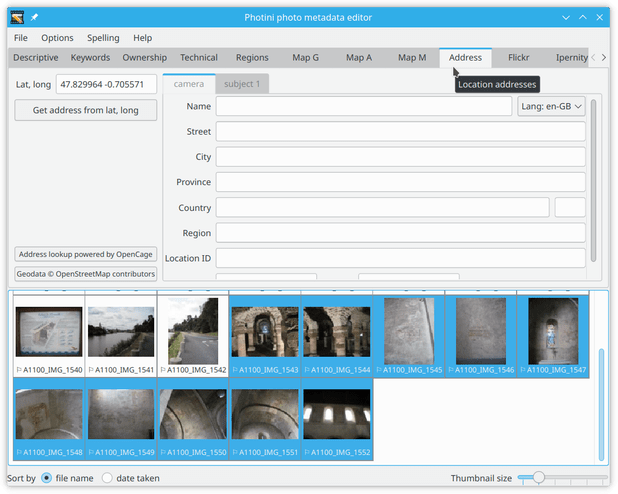
Locations are stored in a 5-level hierarchy: street, city, province, country and region.
The meaning of these terms is rather vague, especially when out in the countryside, and there’s no requirement to fill them all in.
Typically city can be anything from a village to a metropolis, and street is a more specific location, e.g. “23 Abdication Avenue”.
Province would be a state in the USA or a county in the UK.
Country is stored as a name and a 2 or 3 letter ISO code.
Region appears to be rarely used but could be a continent or sub-continent.
Name, Location ID, and GPS data are recent additions to the IPTC location specification.
More detail about all of these can be found on the IPTC web site.
Note that “legacy” IPTC-IIM address metadata only stores the street, city, province, and country fields and only the camera location.
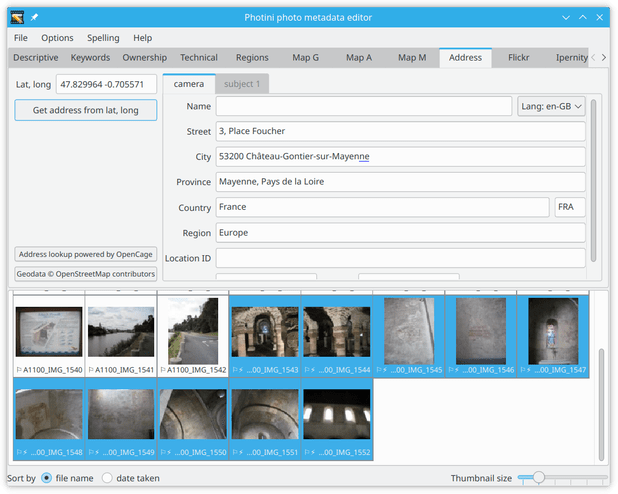
The Get address from lat, long button uses “reverse geocoding” to convert latitude & longitude into a hierarchical address.
This is a rather imprecise process so you may need to edit the results yourself.
The address lookup service is provided by OpenCage, using data from OpenStreetMap.
Other map providers don’t allow lookup results to be permanently stored.
Photini attempts to use all the data returned in an address lookup.
This can lead to some duplication, e.g. a city name appearing twice in City.
Note also the blue underlining indicating text (in the City field) that is too long to store in IPTC-IIM metadata.
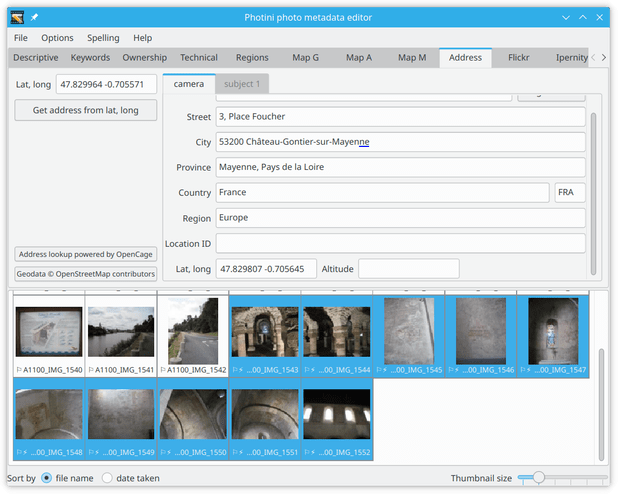
Scrolling down shows the latitude and longitude of the location.
Note that these are not the same as the GPS coordinates shown at the top left.
The reverse geocoding process chooses a “place” (address, business, landmark, etc.) near the actual coordinates and it is the coordinates of that place that are shown in the camera address.
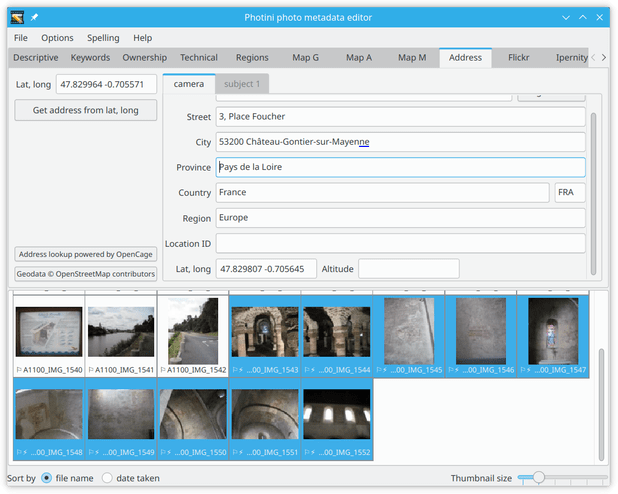
It is usually necessary to edit the address.
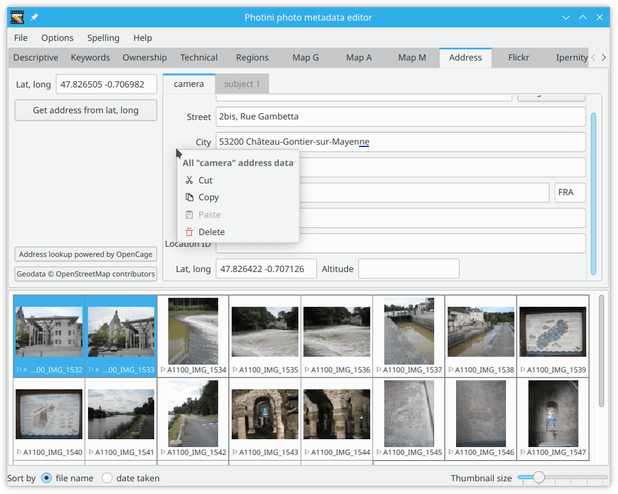
Right-clicking on a location tab displays a context menu that allows the tab data to be copied or deleted.
The camera location can be copied…
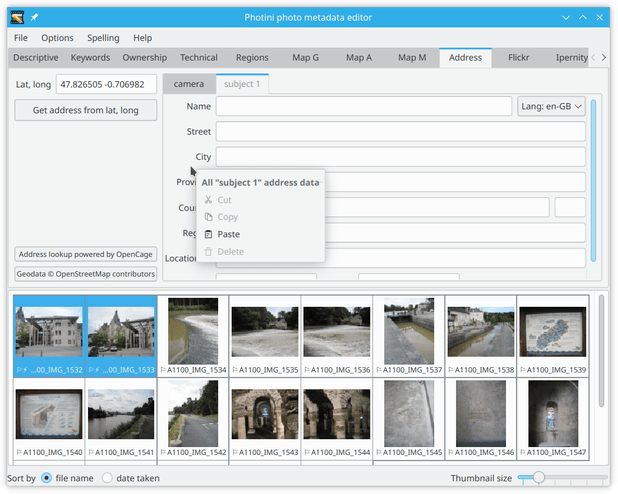
…and pasted into a subject location.
(An empty subject 2 tab is immediately created, in case the photograph has more than one subject.)
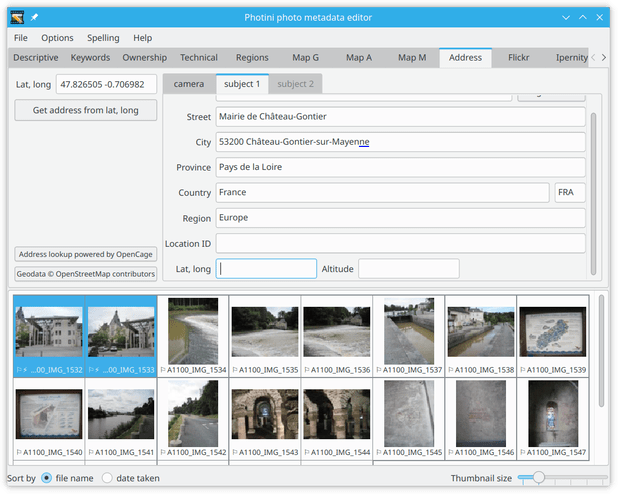
In this case most of the data is the same, but I changed street to the subject of the photograph rather than the place where I was standing, and then deleted the latitude & longitude.
Copy and paste
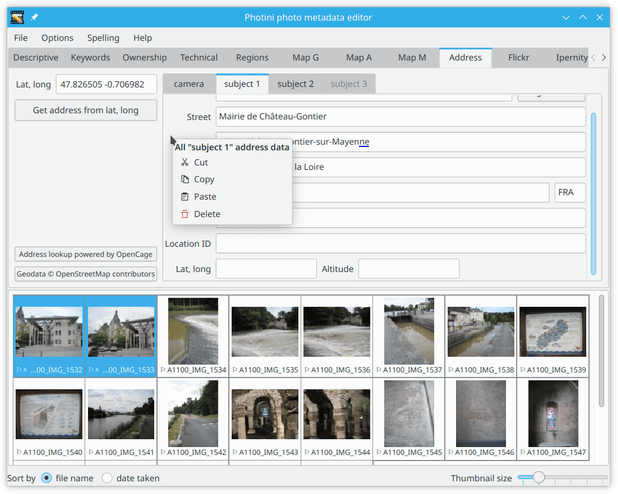
Any single location, camera or subject, can be copied by right-clicking within the tab area.
The data can then be pasted into any other camera or subject tab, typically the empty “place holder” subject tab.
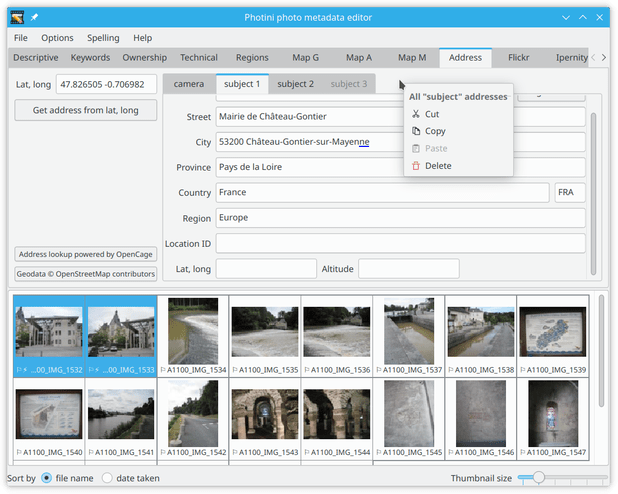
All of the subject locations can be copied by right-clicking on the tab bar.
When the locations are pasted they are added to any existing locations, after removing any duplicates.
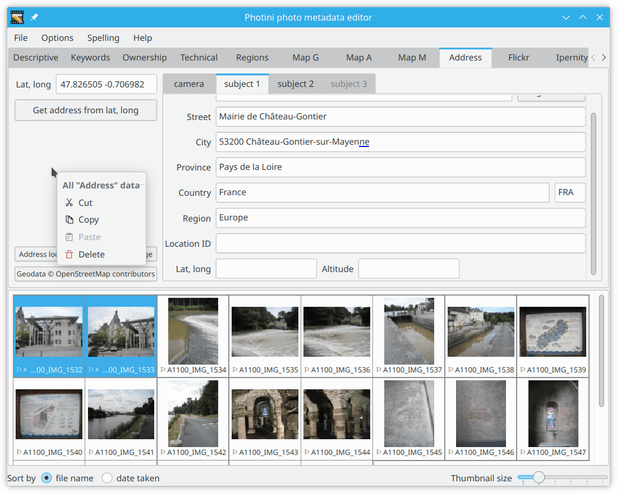
To copy or paste camera and subject locations together, right-click on the area outside the location tabs.
Comments or questions? Please subscribe to the Photini mailing list https://groups.google.com/forum/#!forum/photini and let us know.